How to hide personal information in images before posting on SNS | Checklist for screenshots and photos
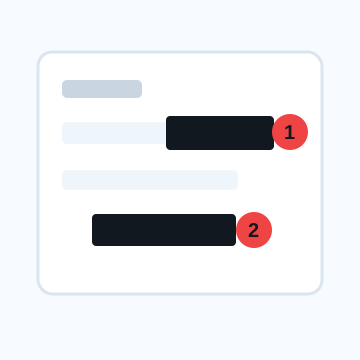
Before posting an image to SNS, it is necessary to check not only the text in the image, but also notices, order numbers, QR codes, maps, buildings in the background, etc. For information that is difficult to read, such as names and numbers, we recommend that you use solid color to make it unreadable, rather than using mosaic or blurring.
Personal information checklist to check before posting on SNS
Before posting an image or screenshot on SNS, be sure to check that the following items are not included in the photo.
- [ ] Name, address, phone number, email address (direct personal information)
- [ ] Order number, reservation number, membership number, ticket number (number that identifies your account or personal transaction)
- [ ] QR code, barcode (risk of accessing private URLs and personal data by scanning)
- [ ] Smartphone notifications, browser tabs, search history (current interests and private connections)
- [ ] Map, location information, nearest station, current location display (information that helps identify your home and current location)
- [ ] Vehicle license plate (information that helps identify the owner)
- [ ] Postal items, courier slips, employee ID cards, student ID cards (something that shows your affiliation and whereabouts)
- [ ] Signboards, school names, store names, landmarks outside windows (Scenery that allows you to guess the range of daily activities)
- [ ] EXIF and location information included in photo files (invisible metadata)
Places that are easily overlooked for each type of image
Screenshot
A lot of information remains on the edges and periphery of the screen. In particular, be careful not to forget to erase the notification bar at the top, browser tabs, search history, chat app account name that overlaps in the background, and the order number or two-dimensional barcode written in the order confirmation email.
Photo
Check the parts other than the main character in the photo. In many cases, the shooting location can be guessed based on road signs, address signs and signboards on utility poles in the background, car license plates, distinctive buildings or school uniforms visible outside the window, store names, etc.
Slip/Luggage/Ticket
The address label of your package will contain not only your name and address, but also your inquiry number and barcode. These should also be concealed, as detailed information can be viewed by scanning and tracking services.
Map/activity record
Screenshots from smartphone map apps and fitness apps include your current location, the name of the nearest station, the route you took, and the names of stores you frequent. It is important to cover a wide range.
Information on using solid color instead of blur/mosaic
Important information consisting of "characters and codes" such as names, addresses, telephone numbers, various numbers, two-dimensional barcodes (QR codes), etc. should be completely hidden from above with a solid cover.
Mosaic and blurring are processes that finely disrupt pixels to make them difficult to see, so depending on the size of the text and the strength of the processing, there is room for guessing the original content. Therefore, it is practical to use mosaic and blurring mainly for blurring people's faces, backgrounds, and other unimportant aspects of the screen.
When hiding, place the cover slightly wider than the area you want to hide so that the edges of the text and some pixels do not stick out. Before exporting and saving the image, please enlarge the preview screen and make a final check to make sure there are no gaps.
Steps to hide with MistSeal
Steps to safely, easily and stylishly hide images and screenshots.
1. Open image
Load the image file from your PC or smartphone browser (the image being edited is not sent to the server and is processed within the browser).
2. Check where you want to hide
Check the entire image based on the checklist above and points that are easily overlooked.
3. Add solid color or cover material
Place "solid color" or "masking tape" or "warning tape" on important information, and adjust the position and size.
4. Enlarge to check and save
Check the enlarged view to make sure there are no edges left, and if there are no problems, save it to your device in JPG or PNG format.## Things to do before posting a screenshot on X/Instagram/LINE
Although the posting screen differs depending on the social media or messaging app, the basics of hiding personal information in images are the same. Names, notices, addresses, order numbers, and QR codes are covered with opaque solid paint rather than mosaic. Use mosaic and blur only when you want to make the face or background less noticeable.
- X (Twitter): Check whether the same information is written not only in the posted image but also in the ALT text and body text.
- Instagram: Check the address and license plate in the image, as well as location tags and mentions when posting.
- LINE: Check the function to hide the display name/icon of the talk screenshot and the processing to hide personal information in the text separately.
If you are looking for operations by app, go to How to hide your name in LINE talk screenshots, Things to hide before posting on Instagram, and How to hide personal information in screenshots before posting.
Frequently asked questions
Will my location information be automatically deleted when I post to SNS?
GPS information is often automatically deleted when posting on major SNS, but it may remain as it is when service specifications change, personal blogs, specific websites, email forwarding, etc. To prevent leaks, it is safer to delete EXIF data yourself before publishing.
Can I hide the QR code with a mosaic?
No, 2D barcodes and QR codes may be read even through the gaps in the mosaic. To prevent misuse through scanning, we recommend covering the entire area with a solid sticker.
Should I enlarge and check the processed image?
yes. Even if they appear hidden in the reduced preview screen, if you enlarge the saved high-resolution image, you may notice that some of the text protrudes or can be inferred from the borders. Get into the habit of zooming in on the final file after exporting.
Check your images before posting to ensure safety.
Is it okay to check the same when posting images to X/Instagram/LINE?
The basics of checking the name, address, notification, QR code, map, face, and license plate in the image are the same. However, there are additional locations for each service that are easy to overlook, such as location information tags when posting, ALT text, mentions, and display names in talk screenshots.
Edit an Image
Use Easy Mode for quick hiding, or Advanced Mode for detailed layers, logos, and export settings.