How to hide your name in LINE talk screenshot | Steps to use the official "hide information"
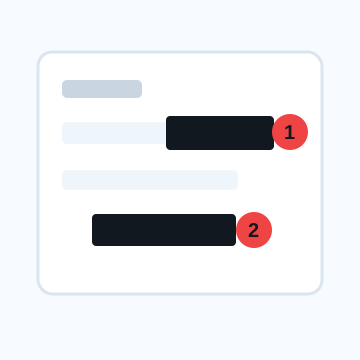
LINE has a "Talk Screenshot" feature that allows you to save a desired area of a chat as an image. When converting a conversation into an image, you can use the official Hide Information to switch the other party's icon image and display name to a dummy display. The advantage of this is that it is easier to extract only the necessary parts of the conversation than normal terminal screenshots.
Steps to hide the name of the chat screenshot on LINE
1. Long press the message you want to turn into an image, then tap Screenshot.
2. Select the range of conversations you want to save. You can select only the necessary parts of long conversations.
3. Tap Hide Information on the screen.
4. Confirm that the other party's icon image and display name have been changed to dummy.
5. If necessary, open the doodle from the pencil icon and cover the name, address, and phone number that will remain in the conversation text.
6. Check the beginning, end, and quotation of the conversation before saving or sharing.
Things that cannot be hidden by "hiding information"
The information hiding function mainly processes the other party's icon image and display name. The real name, address, phone number, email address written in the conversation text, personal information in the image, stamp name, group name, etc. must be confirmed separately. If there is information in the talk itself, cover it with graffiti or select only the necessary lines and do not include them in the screenshot.
Before posting LINE images to X or Instagram
There may be no problem if you just share it on LINE, but if you publish it on SNS, the number of viewers will increase. Check not only the information of the conversation partner, but also your account name, date and time, read mark, group participants, and image attachment file name.
What to check after using How to hide your name in LINE talk screenshot
The main risk is leaving a small edge of text, a number, or a code visible after editing. When using How to hide your name in LINE talk screenshot, make the edited area slightly larger than the target and open the exported file once before posting.
When using How to hide your name in LINE talk screenshot, treat visual softening and redaction as separate jobs. For How to hide your name in LINE talk screenshot, blur or mosaic can reduce detail, but sensitive text and codes are easier to check with an opaque cover.
Frequently asked questions
What changes if you hide the other person's name in the LINE chat screenshot?
If you select Hide information, the other party's icon image and display name will be changed to a dummy one. The name and phone number written in the text are not automatically hidden, so separate confirmation is required.
Should I also hide my LINE group name?
If the group name includes a school name, company name, region name, or real name, please hide it or remove it from the screenshot.
Edit an Image
Use Easy Mode for quick hiding, or Advanced Mode for detailed layers, logos, and export settings.