How to Use MistSeal
MistSeal is an image editor for opening an image, adding covers, watermarks, text, and other adjustments, then saving the result as an image.
Choose the mode that fits your goal, such as screenshots, artwork samples, spoiler images, or product photos.
Choose the Right Workflow
For quickly hiding part of an image
Easy ModeOpen an image and add covers, mosaic, blur, text, or shapes without searching through detailed settings.
- Hide names or notifications in screenshots
- Cover part of artwork with tape or ink
- Add short text
For reusing the same edits
Advanced ModeFine-tune layer order, text, logos, QR codes, watermarks, presets, batch application, and ZIP export.
- Prepare product images or artwork samples in batches
- Place logos or watermarks in the same position
- Choose output size and format
For mosaic or blur only
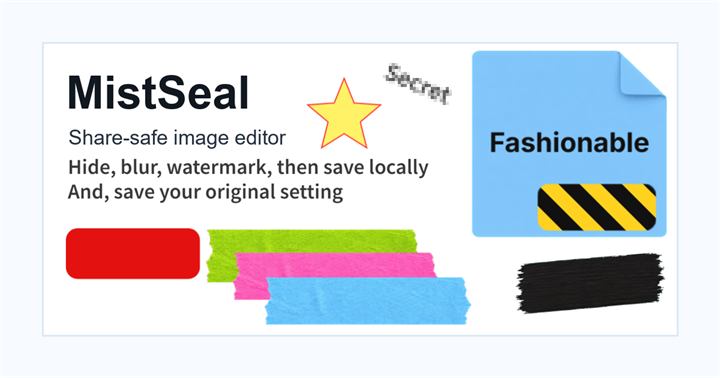
Mosaic/Blur Only ModeSelect part of an image and quickly apply mosaic or blur without full layer editing or logo settings.
For text, numbers, addresses, QR codes, or anything that must be unreadable, use solid covers in the full editor instead of mosaic or blur.
Use Mosaic/BlurBasic Workflow
Open an image
Choose the image you want to edit on desktop or mobile.
Add the needed edits
Add covers, mosaic, blur, text, logos, or other layers, then adjust position and size.
Save the result
Check the preview and save as JPG, PNG, or WebP to your device.
If You Are Not Sure
- Names, addresses, order numbers, emails, QR codes
- Use solid covers
- Backgrounds, face-adjacent areas, or atmosphere you want to keep
- Use mosaic or blur
- Unreleased artwork parts or spoiler images
- Use masking tape, memo covers, warning tape, or ink covers
- Artwork titles, creator names, shop names, URLs
- Use text, logos, and watermarks
- Same edits across multiple images
- Use Advanced Mode presets and batch processing
Detailed Guides by Purpose
Hide Private Information in Screenshots
Check names, notifications, order numbers, and QR codes before posting.
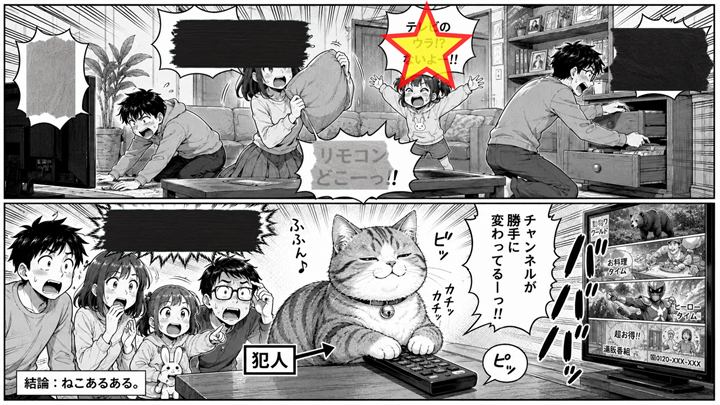
Hide Parts While Showing Artwork Samples
Use masking tape, memo covers, ink covers, and watermarks.
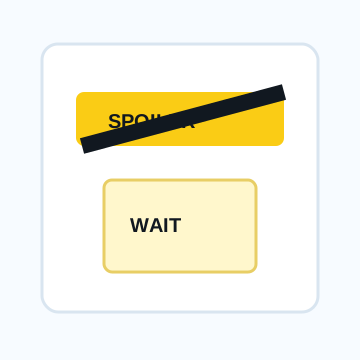
Hide Spoiler Images Before Posting
Use warning tape or text so viewers can choose whether to look.

Add Watermarks, Notes, and Logos to Product Photos
Add shop names, URLs, and notes in a readable way.
Start with one image.
Basic editing and saving can be done in the browser.