Difference between mosaic and blur | How to use to safely hide faces, text, and personal information
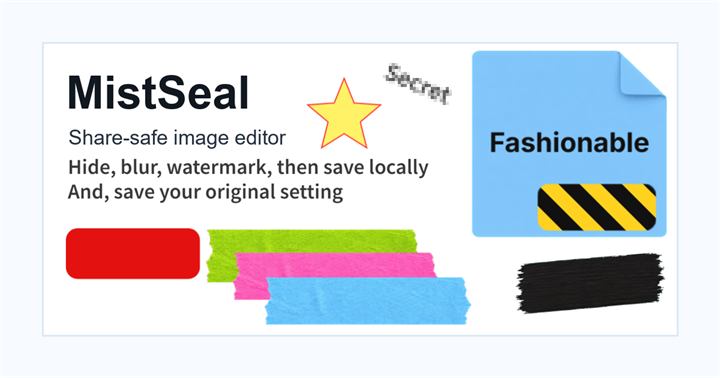
Information that is difficult to read, such as names, addresses, phone numbers, order numbers, and QR codes, should be solidly colored rather than mosaiced or blurred. Mosaic and blur are used for backgrounds, faces, and other areas where you want to soften the appearance while preserving the atmosphere.
First, usage table
Choose the most suitable processing method depending on the contents of the item you want to hide.
- What you want to hide: How to face it
Scenes where mosaic is suitable
Mosaic is a process that roughens pixels into blocks. It is suitable for the following situations.
- I want to visually show that the image has been processed: Useful when you want to let viewers know at a glance that privacy measures have been applied to the image.
- Want to weaken the shape of the face and background: Suitable when you want to weaken the face information to the extent that it is impossible to identify the person, but still want to maintain the feeling that there is a person there.
- I want to create a processed feel rather than blur: Useful when you want to create a retro digital processing atmosphere.
- I want to separate and hide part of the image: Suitable for covering only a part of the image in a pinpoint manner, such as a rectangle with clear borders.
Scenes for blurring
Blur is a process that blends pixels together smoothly. It is suitable for the following situations.
- I want to naturally weaken only the background: In order to make the main character (person or product) stand out, background details are naturally reduced to make them less noticeable.
- I want to keep the people and products in place so that only the surroundings stand out: Gently suppress the emphasis on elements that get in the way of the main character, such as surrounding billboards or other people in the photo.
- Do not want to significantly disrupt the overall atmosphere of the image: Suitable when you want to maintain the overall tone of the photo beautifully without creating a strong grid-like feel like a mosaic.
Scenes that should be filled with solid color
If the part you want to hide is the following information, be sure to use ``Solid Cover'' instead of mosaic or blur.
- Name
- Phone number
- Email address
- Numbers such as credit cards
- Membership number, order number, reservation number
- QR code, barcode
-Address
If these texts and codes are mosaiced or blurred, there is a risk that they can be read through the gaps, or that the original shape may be inferred due to insufficient processing. It is safest to cover it with a completely opaque color.
When hiding, set the range a little wider so that the outline of the text does not protrude. Also, even after exporting (saving) an image, make it a habit to enlarge the file and do a final check to make sure nothing is hidden or omitted.
Common mistakes
- The area to be hidden is narrow and the edges of the characters remain: If the pixels at the top, bottom, left, and right edges of the characters protrude, the characters may be guessed based on the surrounding context or shape.
- The blur is weak and the text is readable: If the blur intensity setting is low, the text may be recognizable when you squint or zoom in.
- Using mosaic for personal information: If you put a mosaic on an address, name, etc., it will be easy to guess the number of characters, and depending on the image quality, there is a risk that some parts may be readable.
- Not checking the image after export: This is a mistake where you judge only by the reduced display on the preview screen and overlook that there are gaps in the actually exported high-resolution file.
- Placing transparent material over important information: This is a case where semi-transparent masking tape or transparent stamps are placed over personal information, making the text transparent and readable.
Points when adjusting with MistSeal- **In easy mode, you can adjust with the slider**: With a simple operation panel, you can intuitively select the application and strength of mosaic and blurring.
- You can fine-tune the intensity even in advanced mode: Use the slider to fine-tune the intensity of the mosaic or blur that best blends into the surrounding landscape.
- Make the area a little wider: Adjust the size of the frame to ensure that the entire text fits inside.
- Use solid color for important information: Choose an opaque color from the color palette to cover it up.
- You can also use masking tape or ink for some parts of your work: You can choose handwritten ink or various tape materials to stylishly hide your work without compromising the design.
If you want to quickly learn how to make a mosaic
Mosaicing is a method of making parts of a photo or screenshot appear blocky and unobtrusive. If you want to hide a face or a sign in the background, make the target area a little wider and enlarge the saved image to see if any features remain.
However, it is safer to cover characters and codes such as names, addresses, phone numbers, order numbers, QR codes, etc. with 100% opaque shapes or solid paint rather than relying on the strength of the mosaic process. You will not be confused if you first distinguish whether the purpose of ``hiding an image'' is to weaken the atmosphere or to make the content completely unreadable.
Specific mosaic processing for each device is summarized in How to do mosaic processing.
Frequently asked questions
Can I hide the text by making the mosaic stronger?
If the mosaic is made too strong, the shape of the letters will be distorted, but the balance of the number of letters and color scheme will remain, so the risk of guessing cannot be eliminated. We recommend using solid color from the beginning for personal information and important text.
Which is better for your face, mosaic or blur?
"Mosaic" is suitable if you want to clearly show your intention to protect privacy, and "Blur" is suitable if you want to create a natural finish without destroying the overall atmosphere of the photo.
Can I use just Mosaic/Blur immediately?
Yes, you can. We provide [Mosaic/Blur Only Mode] (/MistSeal/en/tools/mosaic-blur/), which removes unnecessary layers and setting functions and focuses only on mosaic and blur functions. You can use it right away on your browser with no installation required.
Choose the method that best suits the content you want to hide.
What if I just want to try out the mosaic processing method right away?
If you just want to hide the face or background, the basic process is to open the image, apply mosaic or blur to the target area, and then check the enlargement before saving. For text information such as addresses and numbers, choose opaque solid color rather than mosaic.
Edit an Image
Use Easy Mode for quick hiding, or Advanced Mode for detailed layers, logos, and export settings.