How to do mosaic processing | Hide part of a photo on iPhone, Android, PC, or browser
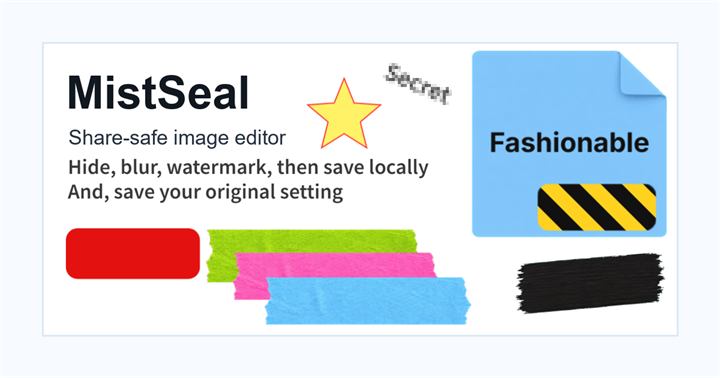
The method of mosaic processing differs slightly depending on the device you use. The important thing is not to apply the mosaic itself, but to process the image to the point where faces and text cannot be discerned after the image is saved.
If you want to create a mosaic on your iPhone
The iPhone's standard photo app is suitable for hiding images with black paint or shapes, but if you are looking for features specific to mosaics, you may need to use an external app or browser tool. It is safer to cover letters such as addresses and names with markup shapes rather than mosaics.
If you want to do mosaic processing on Android
The content of photo editing on Android differs depending on the device manufacturer. You may be able to use markup and editing with Google Photos, but if you need the mosaic itself, it's definitely better to choose the browser's image processing tools or dedicated apps. If you want to hide the screenshot notification/name, first use cropping and an opaque cover.
If you want to do mosaic processing on a PC/browser
Canva, Pixlr, Photoshop, iLoveIMG, and more let you blur, pixelate, and mosaic your selections. The advantage of using a PC is that you can enlarge the image and easily check the size of grains and any omissions in processing. For photos with multiple faces or text, you can reduce omissions by marking candidates to hide before proceeding.
Is it better to use larger grains for mosaic processing?
Although it cannot simply be said that ``bigger is safer,'' mosaics that are too finely grained retain their original characteristics. Enlarge the image to see if you can read the eyes, nose, and mouth of the face, the letters on the license plate, and the kanji in the address. Images will be reduced in size when posted on social media, but we process them with the possibility that the original file may be downloaded and enlarged.
What to check after using How to do mosaic processing
The main risk is leaving a small edge of text, a number, or a code visible after editing. When using How to do mosaic processing, make the edited area slightly larger than the target and open the exported file once before posting.
When using How to do mosaic processing, treat visual softening and redaction as separate jobs. For How to do mosaic processing, blur or mosaic can reduce detail, but sensitive text and codes are easier to check with an opaque cover.
Frequently asked questions
Can mosaic processing be done only with an iPhone?
Blacking is easy with iPhone's standard functions, but mosaic itself may require the use of external apps or browser tools. If you want to hide text, don't worry about mosaic; just cover it with shapes.
What are the advantages of doing mosaic processing on a PC?
You can enlarge the photo to see it, making it easier to spot fine text, small faces, and multiple areas of missing processing. It will also be easier to check the image after exporting.
Edit an Image
Use Easy Mode for quick hiding, or Advanced Mode for detailed layers, logos, and export settings.