How to hide an image before posting on Instagram | Check list for mosaicing your face, address, and number
Before posting a photo to Instagram, check not only the information in the editing app but also the information published on the posting screen. Even if a face, address, or license plate is not shown in the photo, clues may appear from the location tag, person tag, caption, and ALT text of the post.
Steps to hide images before posting on Instagram
1. Before choosing an image to post, make a copy of the original image to share.
2. Check the face, license plate, address, nameplate, document, uniform nametag, and computer screen.
3. Hide faces with mosaic or blur, and hide letters and numbers with opaque covers.
4. Check if you have added location information on the posting screen.
5. Check if person tags, captions, mentions, and hashtags contain personal information.
6. For the final preview before posting, if you have multiple images, send them all to the side for review.
Hide information about your home other than your face
Nameplates, mailboxes, buildings visible from windows, school names, nearest stations, car models, room layouts, names of nearby shops, etc. may be small pieces of information on their own, but when combined, they can become clues to a location. Especially when taking pictures of your home, children, school, or workplace, look carefully at the background of the image.
Don't rely only on editing within Instagram
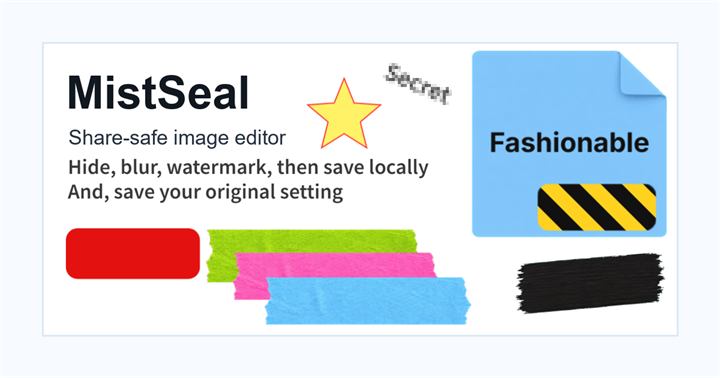
Instagram post editing is useful for adjusting the appearance of a photo, but it is not suitable for reliably hiding information in multiple places. Before posting, edit your photos using a photo app, browser editor, MistSeal, etc., and place only the edited images in your posting album to avoid mistakes.
What to check after using How to hide an image before posting on Instagram
The main risk is leaving a small edge of text, a number, or a code visible after editing. When using How to hide an image before posting on Instagram, make the edited area slightly larger than the target and open the exported file once before posting.
When using How to hide an image before posting on Instagram, treat visual softening and redaction as separate jobs. For How to hide an image before posting on Instagram, blur or mosaic can reduce detail, but sensitive text and codes are easier to check with an opaque cover.
Frequently asked questions
If you want to hide your face on Instagram, is it better to use a mosaic or a stamp?
If you just want to look cute, you can use a stamp, but if you want to avoid seeing your face, mosaic or blurring the entire face is better. Also check the background and clothing for clues.
Can I replace the Instagram image after posting?
It is safer to complete the editing before publishing than to replace the image itself with a secure version after posting. If you have accidentally given out personal information, please first prioritize measures to stop the scope of disclosure.
Edit an Image
Use Easy Mode for quick hiding, or Advanced Mode for detailed layers, logos, and export settings.