How to hide personal information in images on X (Twitter) | Countermeasures for screenshot names, notifications, and ALT text
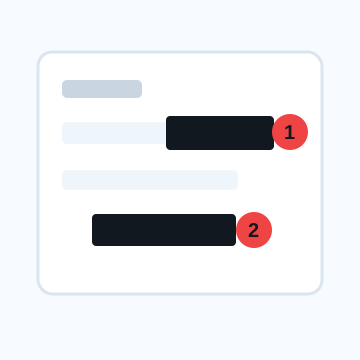
When posting images or screenshots to X (formerly Twitter), check not only the personal information in the image, but also the ALT text (image description) added on the posting screen. In X, you can add an ALT after posting an image, and after posting, viewers can read the content from the ALT badge. Be careful not to write information hidden in the image in the description.
Steps to hide personal information in screenshots before posting
1. After taking a screenshot, edit it with a photo app or MistSeal before posting.
2. Check the name, icon, notification, DM text, URL, email address, search term, and location information.
3. Text information is painted black, and faces and backgrounds are blurred or mosaiced as necessary.
4. After uploading images on the X posting screen, check all images if there are multiple images.
5. Check whether you have written personal information in the image description using +ALT or "Add description".
6. Even after posting, check the image, ALT, text, and reply address in public view.
Common oversights in X's ALT text
Although it is important to include an ALT for accessibility, there is no need to write your real name, location, contact information, or the rest of the conversation that is not included in the screenshot. When describing an image, only briefly describe what is acceptable for public viewing. When using multiple images, each image will have an ALT, so check the second and subsequent images as well.
When reviewing posts from the Twitter era
Past posts may contain clues about someone's address, place of work, face, and range of activity that they didn't pay attention to at the time. In addition to future posts, you can reduce the risk of personal information leaking from images by reviewing your profile, fixed posts, and buzz posts with images.
What to check after using How to hide personal information in images on X (Twitter)
The main risk is leaving a small edge of text, a number, or a code visible after editing. When using How to hide personal information in images on X (Twitter), make the edited area slightly larger than the target and open the exported file once before posting.
When using How to hide personal information in images on X (Twitter), treat visual softening and redaction as separate jobs. For How to hide personal information in images on X (Twitter), blur or mosaic can reduce detail, but sensitive text and codes are easier to check with an opaque cover.
Frequently asked questions
Is X's ALT text visible to others?
When you set an ALT on an image, people who view your post can read the description from the ALT badge. Prevents ALT from adding names and locations hidden in images.
What if I notice personal information after posting an image on X?
Priority will be given to unpublishing and deleting posts before the scope of publication expands. Please check whether the same information remains not only in the image but also in the body, replies, quotes, and ALT text.
Edit an Image
Use Easy Mode for quick hiding, or Advanced Mode for detailed layers, logos, and export settings.