How to hide text and names in images in Photoshop | How to black out addresses and numbers
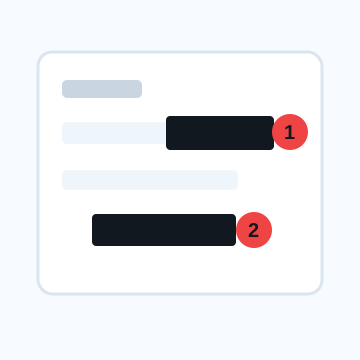
When hiding addresses and numbers in Photoshop, covering them with opaque shape layers is a better option than using mosaics. The purpose of hiding the text in an image is not to make the photo look stylish, but to make the content unreadable.
Steps to blacken text in Photoshop
1. Open the image you want to edit for sharing and duplicate the background layer.
2. Select the Rectangle tool and draw a shape over the text you want to hide.
3. Make the fill 100% opaque and set the stroke to None if you don't want it.
4. Place the shape a little wider than the text, making sure not to leave any small text above or below.
5. In the Layers panel, make sure the shape is above the image.
6. Save as a different name before exporting to avoid confusing the original data with the edited data.
Information that black painting is better than mosaic
Names, addresses, phone numbers, email addresses, account numbers, order numbers, QR codes, and the text of conversations may have outlines if the mosaic is fine. Especially in screenshots, the font is uniform, so the content can be inferred from the number and arrangement of characters. If necessary, it is safer to cut out the target area or make a larger black area.
Precautions when leaving layers
If you just save it as a PSD, you can see the original text when you hide the shape layer. Rather than handing the PSD to the other party, the basic idea is to share the completed image exported to PNG/JPEG. If you need edited data for internal sharing, etc., please limit the scope of handling of the original file.
What to check after using How to hide text and names in images in Photoshop
The main risk is leaving a small edge of text, a number, or a code visible after editing. When using How to hide text and names in images in Photoshop, make the edited area slightly larger than the target and open the exported file once before posting.
When using How to hide text and names in images in Photoshop, treat visual softening and redaction as separate jobs. For How to hide text and names in images in Photoshop, blur or mosaic can reduce detail, but sensitive text and codes are easier to check with an opaque cover.
Frequently asked questions
Can I restore the blacked out text in Photoshop later?
For PSDs with layers left, the original text may be visible when the cover is hidden. When passing externally, please export JPEG or PNG that reflects the black color.
Is it okay to use mosaic to hide the QR code in Photoshop?
It is safer to cover the entire code and its margins with an opaque shape than to leave only a portion of the QR code. Also check the name and order number near the QR code.
Edit an Image
Use Easy Mode for quick hiding, or Advanced Mode for detailed layers, logos, and export settings.