How to make a mosaic on an image on LINE | How to blur and edit a photo before sending it
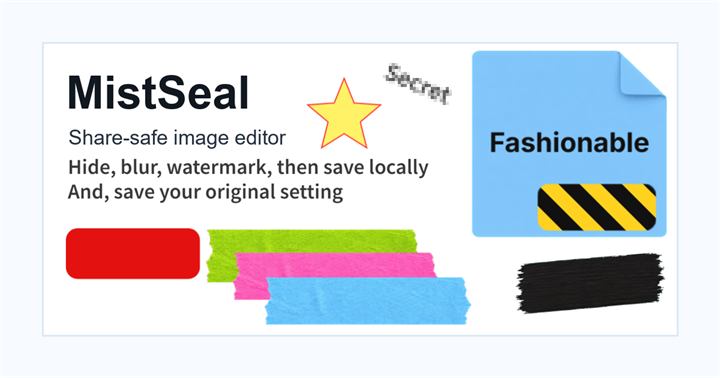
If you want to add a mosaic effect to the face or background before sending a photo on LINE, use the editing function after selecting the image from the chat screen. LINE's doodles include pens, shapes, and mosaics, and you can add mosaics and blur to the parts you trace.
Steps to make a mosaic on an image on LINE
1. Tap the camera or photo icon on the chat screen.
2. Select the photo/image you want to edit.
3. Open Doodle on the editing screen.
4. Choose mosaic or blur and trace faces, license plates, background signs, etc.
5. Enlarge the letters and numbers to make sure the mosaic grains are not too small.
6. Confirm your edits and make sure you select the edited image in the preview just before sending.
Precautions when hiding with LINE mosaic
Editing images on LINE is convenient for sending one image on the spot. However, when hiding information that should not be read, such as addresses, names, QR codes, and certificate numbers, it is safer to cover it with shapes rather than mosaics. LINE doodles also have shapes, so use opaque squares or crop the photo itself.
Do not assume cancellation after sending
Even if there is a function to cancel sending, there is a possibility that the recipient has already saved, forwarded, or screenshotted the message. The basic rule is to complete the process to hide the image before sending it. To avoid sending the wrong image, please compare the original image and the edited image on the same screen before sending.
What to check after using How to make a mosaic on an image on LINE
The main risk is leaving a small edge of text, a number, or a code visible after editing. When using How to make a mosaic on an image on LINE, make the edited area slightly larger than the target and open the exported file once before posting.
When using How to make a mosaic on an image on LINE, treat visual softening and redaction as separate jobs. For How to make a mosaic on an image on LINE, blur or mosaic can reduce detail, but sensitive text and codes are easier to check with an opaque cover.
Frequently asked questions
Can I use LINE Mosaic for free?
When editing photos from the LINE chat screen, you can use the graffiti mosaic/blur feature. The screen may change due to app updates, so please check the edit menu before sending.
Can I hide images sent on LINE later?
After sending, it may be saved, forwarded, or screenshotted by the other party. Be sure to complete processing before sending without assuming cancellation.
Edit an Image
Use Easy Mode for quick hiding, or Advanced Mode for detailed layers, logos, and export settings.