How to hide the name and notification in a screenshot on iPhone | Check before editing and saving the image
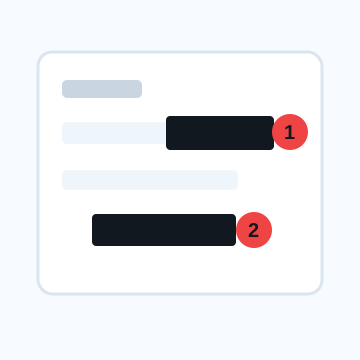
Editing iPhone screenshots from the thumbnail that appears at the bottom left immediately after taking them makes it easier to hide the name and notifications before sending. When posting screenshots on social media, for work consultations, LINE, or X, check the surrounding information before sharing.
Steps to hide personal information in screenshots on iPhone
1. Take a screenshot and quickly tap the thumbnail in the bottom left.
2. Trim the unnecessary upper and lower areas first.
3. Open the markup and use a shape or thick pen to cover the name, notification, URL, or email address.
4. Do not reduce the transparency of the cover so that the original text cannot be seen through.
5. For full page screenshots, scroll down to see if there is any information remaining in the entire storage range.
6. Once done, choose a share destination such as "Save to Photos" and open the edited image to review it.
Places that are easily overlooked in screenshots
More dangerous than the time, carrier, and battery display at the top are the notification text, browser tab name, account icon, search history, file name, and reply destination name. If the purpose is to show the conversation, the icon and display name of the conversation partner will also be included. For scrolling screens, check to see if the same information is repeated outside the screen.
Reasons to double check before sending
Since screenshot editing is completed in a short time, it is easy to make the mistake of attaching the original image with the intention of editing it. Before sending, open the attachment preview and check whether the image contains black lines or shapes. Especially when posting multiple images, it is easy to miss the processing of the second and subsequent images.
What to check after using How to hide the name and notification in a screenshot on iPhone
The main risk is leaving a small edge of text, a number, or a code visible after editing. When using How to hide the name and notification in a screenshot on iPhone, make the edited area slightly larger than the target and open the exported file once before posting.
When using How to hide the name and notification in a screenshot on iPhone, treat visual softening and redaction as separate jobs. For How to hide the name and notification in a screenshot on iPhone, blur or mosaic can reduce detail, but sensitive text and codes are easier to check with an opaque cover.
Frequently asked questions
How to hide only the top of the screenshot on iPhone?
If you don't need the notifications, time, or account name at the top, it's best to trim the top area first. Place the cover with the markup only when you need to leave it.
How to prevent forgetting to hide full page screenshots on iPhone?
Move the preview on the right side all the way down to see what's off the screen. The same name or address may be repeated further down on a full page.
Edit an Image
Use Easy Mode for quick hiding, or Advanced Mode for detailed layers, logos, and export settings.