How to hide images | How to safely edit faces, text, and parts of photos
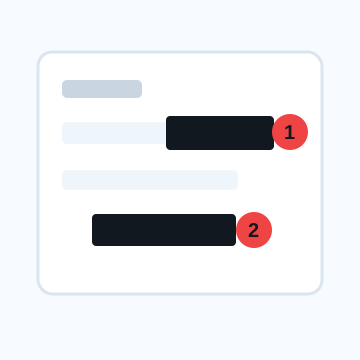
When looking for a way to hide an image, first decide whether you want to make it look less noticeable or if you want to make personal information unreadable. If you want to make the face, background, and eyes less noticeable naturally, you can use blurring or mosaic processing, and if you want to reliably hide addresses, names, phone numbers, QR codes, etc., use black paint or cutouts.
3 ways to hide images
1. Hide your face and license plate with mosaic processing
Mosaic processing is used when you want to anonymize faces, car license plates, people in the background, etc. in a photo. If the grain is too fine for the resolution of the original image, the features of eyes and text may remain, so enlarge the saved image and check it.
2. Naturally hide part of the image with blur processing
Blur is suitable when you want to make background rooms, eyes, passersby, etc. naturally less noticeable. While it is easy to use as a stylish finishing touch, it may not be useful for erasing text information.
3. Hide characters and names with black paint/shapes
Cover address, name, phone number, email address, order number, and QR code with opaque shapes. The trick is to cover the area a little larger than the target so that there are no edges or spaces between lines.
Should I hide images on my smartphone or PC?
If you want to hide just one photo in a hurry, you can use iPhone's markup, Android's standard editing, or LINE's doodle function. If you want to process multiple images using the same rules, or if you want to check mosaic, blurring, and location information all at once, it's easier to reduce omissions using a PC or dedicated tools.
Things to check before saving images
The most important thing is not to send the original image after it has been processed. Check the save destination, file appearance, attachment preview on the posting screen, and if there are multiple pages, view all pages. Photos may contain location information, so be sure to check the metadata before publishing.
What to check after using How to hide images
The main risk is leaving a small edge of text, a number, or a code visible after editing. When using How to hide images, make the edited area slightly larger than the target and open the exported file once before posting.
When using How to hide images, treat visual softening and redaction as separate jobs. For How to hide images, blur or mosaic can reduce detail, but sensitive text and codes are easier to check with an opaque cover.
Frequently asked questions
If I want to hide part of an image, which is better: mosaic or blur?
Mosaic is suitable for faces and license plates, and blur is suitable for naturally weakening the background. Rather than using either text, address, or QR code, choose blacked out or cutouts.
If I hide the image, will the location information also disappear?
Editing the appearance and deleting location information are two different things. If you are concerned about the GPS location information of your photos, please also check the EXIF and location settings before sharing.
Edit an Image
Use Easy Mode for quick hiding, or Advanced Mode for detailed layers, logos, and export settings.