How to hide text and names in images with Canva | How to black out addresses and QR codes
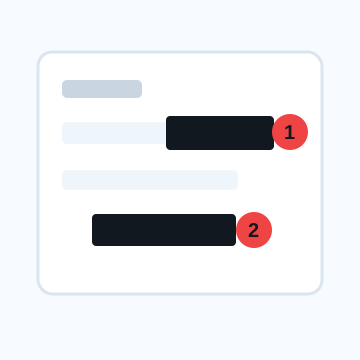
If you want to hide text in an image in Canva, the basic method is to cover it with an opaque shape rather than blurring it. Target information includes address, name, phone number, email address, order number, QR code, and login screen ID. Unlike blurring to maintain the atmosphere of an image, text information needs to be made not only "unreadable" but also "unguessable."
Steps to black out letters and names with Canva
1. Add the image to Canva and zoom in to see the text you want to hide.
2. Add a rectangle from Material or Element.
3. Choose a color for the shape and set the opacity to 100%.
4. Place the shape from one end of the string to the other, leaving a little space on the top, bottom, left and right.
5. If multiple strings are close, cover a larger range without dividing them into smaller pieces.
6. Duplicate and export the image to share only the edited version while keeping the original design.
Do not hide only “part” of the QR code/barcode
QR codes and barcodes may remain unreadable if some parts remain. It is safe to cover the entire cord and surrounding margins, rather than just blurring the center of the pattern. If you have taken an image of the slip, please also check the name, postal code, tracking number, and store name.
Why a dark colored cover is easier to understand than a white one
If you place a white square on an image with a white background, it will be difficult to see where you have hidden it, and you may miss any leaks before saving. Even if white is required for the design to be published, it is safe to hide it with a dark color when editing, check, and then adjust the colors at the end.
What to check after using How to hide text and names in images with Canva
The main risk is leaving a small edge of text, a number, or a code visible after editing. When using How to hide text and names in images with Canva, make the edited area slightly larger than the target and open the exported file once before posting.
When using How to hide text and names in images with Canva, treat visual softening and redaction as separate jobs. For How to hide text and names in images with Canva, blur or mosaic can reduce detail, but sensitive text and codes are easier to check with an opaque cover.
Frequently asked questions
Can I use a stamp to hide my name in Canva?
Although it can be used for presentation purposes, the text may be visible through the gaps or transparent parts of the stamp. If you want to hide personal information, it is better to first cover it with an opaque shape.
Can I share the edited data after hiding the text in an image with Canva?
The original image and previous hidden text may remain in the editable data. It is safe to send an exported PNG or JPEG image that reflects the black color to the recipient.
Edit an Image
Use Easy Mode for quick hiding, or Advanced Mode for detailed layers, logos, and export settings.