How to edit images for free in a browser | Hide faces and text with blur or mosaic
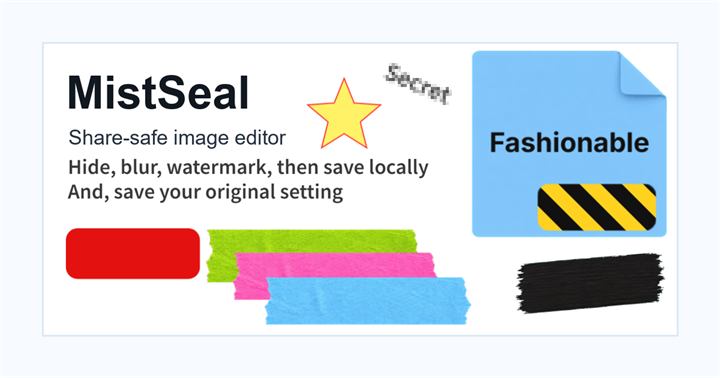
If you want to edit images for free in your browser, you can process the face, background, and text of the photo without installing an app. While it is easy to open on a PC or smartphone, you must be careful about the content of the data you are handling, as images may be uploaded to external services.
Basic steps to hide images in the browser
1. Open the image editing site you want to use and upload the duplicated image for sharing.
2. Select blur/mosaic for faces and backgrounds, and shapes/fill for letters and numbers.
3. Enlarge the image and specify a slightly larger area to hide.
4. Check for processing omissions, transparency, and storage format before downloading.
5. Reopen the saved file and make sure it is the edited image and not the original image.
Scenes suitable for browser image processing sites
Suitable if you want to check fine print on your PC, use it only once without installing it, or compare multiple editing tools. Tools like Pixlr and iLoveIMG are useful for just blurring faces, Canva and Adobe Express are for adding design, and Photoshop is for detailed layer editing.
Images you should be careful about before uploading
We are especially careful before uploading items such as IDs, credit cards, medical information, non-public work documents, and photos that include addresses online. Effective measures include first trimming the image to only the necessary area, not reusing the original data, and reducing the amount of information remaining in the image before uploading.
What to check after using How to edit images for free in a browser
The main risk is leaving a small edge of text, a number, or a code visible after editing. When using How to edit images for free in a browser, make the edited area slightly larger than the target and open the exported file once before posting.
When using How to edit images for free in a browser, treat visual softening and redaction as separate jobs. For How to edit images for free in a browser, blur or mosaic can reduce detail, but sensitive text and codes are easier to check with an opaque cover.
Frequently asked questions
Can I edit images in the browser on my smartphone?
There are services that can also be used on smartphone browsers. However, it is easier to check fine text and small faces on the large screen of a PC or tablet.
If I blur an image in the browser, will the original image disappear?
Each service is treated differently. Please check the terms of use before uploading and only use images you have reproduced for public use.
Edit an Image
Use Easy Mode for quick hiding, or Advanced Mode for detailed layers, logos, and export settings.