How to hide images on Android | How to edit faces, names, and notifications in screenshots
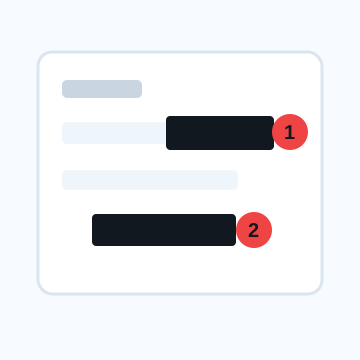
The basic way to hide an image on Android is to use the edit button that appears immediately after taking a screenshot, or edit it later using Google Photos or the device's standard gallery. Android has different screen names and editing functions depending on the manufacturer, so search for similar items such as "Edit", "Markup", "Draw", and "Pen".
Steps to hide screenshot name and notification on Android
1. Take a screenshot and tap Edit from the displayed preview.
2. If you don't want to edit it right away, open the screenshot from "On This Device" in Google Photos.
3. Trim unnecessary parts at the top, bottom, left and right.
4. Cover names, notifications, email addresses, and URLs with markup, drawing, and pen features.
5. Use a thickness and color that prevents the text from showing through, and hide it slightly larger than the target.
6. Open the saved image and check whether the file to be sent has been edited.
Before searching for "image hiding app" on Android
Standard editing is sufficient when you want to add covers to only a few places in one screenshot. If you want to hide faces in multiple images at once, use blur or mosaic accurately, or check location information, it may be easier to use a dedicated tool.
See where your name remains, not just notifications
Information such as the text of notification banners, SNS account names, browser tabs, file names, calendar events, current map locations, and Wi-Fi names are often overlooked. Don't hesitate to cut out or cover any areas that are not relevant to the purpose of posting the screenshot.
What to check after using How to hide images on Android
The main risk is leaving a small edge of text, a number, or a code visible after editing. When using How to hide images on Android, make the edited area slightly larger than the target and open the exported file once before posting.
When using How to hide images on Android, treat visual softening and redaction as separate jobs. For How to hide images on Android, blur or mosaic can reduce detail, but sensitive text and codes are easier to check with an opaque cover.
Frequently asked questions
How to hide part of the screenshot on Android?
Use trimming or markup on the editing screen immediately after shooting, on Google Photos, or on your device's gallery app. The button names vary depending on the model, so look for Edit, Draw, and Pen.
Do you need an app to hide images on Android?
It may not be necessary if you only place covers in a few places on one screenshot. Dedicated tools are useful if you want to hide multiple faces, use mosaics, or process multiple images.
Edit an Image
Use Easy Mode for quick hiding, or Advanced Mode for detailed layers, logos, and export settings.