How to hide a face in an image | How to use mosaic, blur, and stamp and precautions
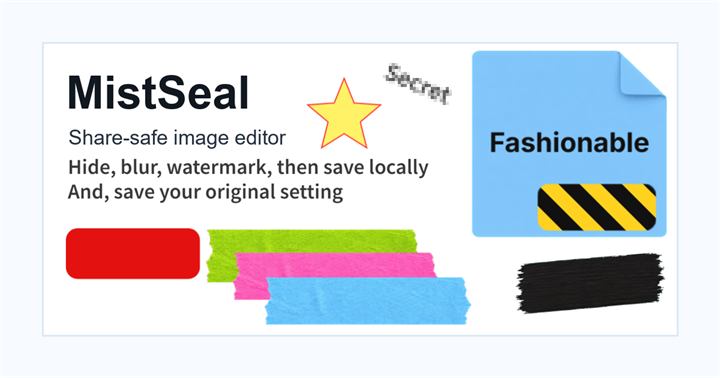
Ways to hide faces in images include mosaic, blur, stamp, and blackout. Which one is better depends on whether you want to make your photos look cute or whether you want to prevent your identity from being identified.
How to choose a process to hide your face
Mosaic
Suitable when you want to make facial features difficult to distinguish. If the grain is too fine, eyes and outlines will remain, so check the image after it is saved. This is an easy-to-use method for objects that you want to anonymize, such as group photos and license plates.
Blur
Suitable when you want to preserve the natural atmosphere of the photo. This is useful for making background figures or distant faces less noticeable, but facial features may remain. If you want to avoid identification, blur the entire face and surrounding areas sufficiently.
Stamp
This is a processing for SNS where you want to hide the eyes and mouth in a cute way. You can preserve the atmosphere of the person, but you may be able to tell who the person is by their hairstyle, outline, clothing, and background. If you prioritize privacy protection, consider whether stamps alone are sufficient.
Solid cover
This can be used when you do not want to show your face to avoid identity verification. Although the appearance will be stronger, it is effective for screenshots and materials where you want to give priority to authenticity.
Precautions when covering only the eyes
In processing such as "Image Hide Eyes" and "Image Hide Eyes", thin lines may be drawn only around the eyes. However, there are times when you can tell by the nose, mouth, outline, and hairstyle. For photos of minors, photos that show your home or school, or photos of people you don't know, consider covering your entire face or not posting them in the first place.
What to check after using How to hide a face in an image
The main risk is leaving a small edge of text, a number, or a code visible after editing. When using How to hide a face in an image, make the edited area slightly larger than the target and open the exported file once before posting.
When using How to hide a face in an image, treat visual softening and redaction as separate jobs. For How to hide a face in an image, blur or mosaic can reduce detail, but sensitive text and codes are easier to check with an opaque cover.
Frequently asked questions
If I want to hide the face in an image, is it enough to just use the eyes?
If it's just a light touch that you want to show off to your acquaintances, you may want to do just the eyes. However, if you want to avoid identifying your identity, you need to check your entire face, hairstyle, clothing, and background.
Even if you make a mosaic on your face, will it not be visible when enlarged on SNS?
If the mosaic is detailed, you may notice some features when zoomed in. Enlarge the exported image and check if you can distinguish the eyes, mouth, and outline.
Edit an Image
Use Easy Mode for quick hiding, or Advanced Mode for detailed layers, logos, and export settings.