How to hide text and personal information in images with Adobe Express | Cover with shapes instead of mosaics
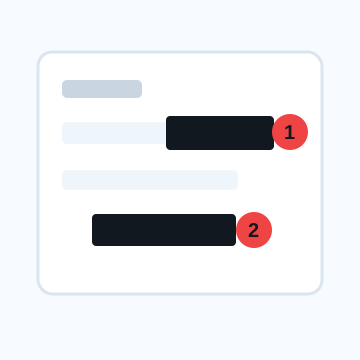
While Adobe Express makes it easy to create designs and edit images all at once, when processing personal information before publication, it is necessary to distinguish between ``things that only need to be blurred'' and ``things that need to be completely covered.'' If you want to hide text in an image, the easiest way to hide it is to use black overlapping shapes.
Steps to hide text in an image in Adobe Express
1. Place the image you want to edit on the Adobe Express canvas.
2. Enlarge the image and check the area to be hidden by address, name, and number.
3. Add a rectangle from Elements or the Shape menu.
4. Make the shape opaque and place it one size larger than the text.
5. If necessary, change the layer order so that the shape is always on top of the image.
6. Export as PNG or JPEG and check the saved file again.
Cases where blurring is suitable and cases where it is not suitable
Blur is useful when you want to make background rooms, passersby, eyes, etc. naturally less noticeable. On the other hand, you should not rely on blurring for names, amounts, order information, URLs, QR codes, and account IDs, as the character shapes tend to remain. When sharing screenshots, be sure to include notification banners, browser tab names, search history, and profile images.
How to erase information using design margins
When preparing images for posting using Canva or Adobe Express, simply placing a black square over the area to be hidden may cause the image to float. Another option is to layer a strip or card that matches the design on top. However, the final cover should be opaque to avoid reducing the transparency too much or letting the text in the background show through.
What to check after using How to hide text and personal information in images with Adobe Express
The main risk is leaving a small edge of text, a number, or a code visible after editing. When using How to hide text and personal information in images with Adobe Express, make the edited area slightly larger than the target and open the exported file once before posting.
When using How to hide text and personal information in images with Adobe Express, treat visual softening and redaction as separate jobs. For How to hide text and personal information in images with Adobe Express, blur or mosaic can reduce detail, but sensitive text and codes are easier to check with an opaque cover.
Frequently asked questions
Is it possible to erase text from an image using Adobe Express?
The process of erasing text to improve appearance is different from the process of hiding personal information. If you want to hide personal information, it is easier to see the editing results by covering it with an opaque shape rather than erasing it.
How to hide screenshot notifications in Adobe Express?
If you can trim the notification part, do it first. If you want to keep it, please use a shape to cover the body of the notification, sender's name, and time.
Edit an Image
Use Easy Mode for quick hiding, or Advanced Mode for detailed layers, logos, and export settings.